
tSQLt Test Adapter for Visual Studio 2022+
I have had a number of requests for me to update the tSqlt Test Adapter over the years so it would work with more recent versions of Visual Studio. I finally got around to doing this and I am pleased to say that the new version works with VS 2022, 2025 and should continue to work in future releases.
Between Visual Studio 2017 and 2019 the changes required were minimal but between 2017 and 2022 the changes meant a rewrite of the test adapter visual studio integration parts which meant it wasn’t a simple change.
Getting it installed
In Visual Studio 2019 you could install a Visual Studio extension that included the test adapter but in Visual Studio 2022+ the test adapters are dstributed using nuget. This works great for .NET projects but we, typically, have only SSDT projects which can’t reference nuget packages. This means that we have a couple of options, the first is to download the nuget package manually:
https://www.nuget.org/packages/tSQLtVisualStudio2022.TestAdapter
Extract it to somewhere and then use a runsettings file to reference the dll’s in the nuget below.
The second option is that I have created a small extension that does two things:
- It helps download and extract the nuget package and configure the runsettings file for us
- It includes a “Quick Sql Deploy” which deploys code changes without having to go through the dacpac build/publish cycle which is painfully slow when developing
Downloading and using the tSQLt Helper Extension
If you open the Visual Studio extension menu and search for GOEddie-tSQLt-Helper-v2 it will let you install the tSQLt extension:
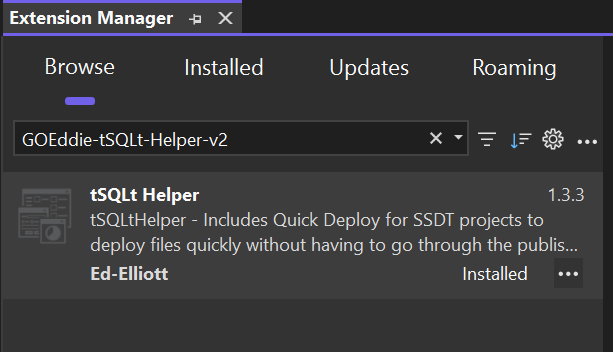
This will give you two items under the “Extensions” menu:
If you choose the menu “SSDT: Download Test Adapter” it will prompt for a folder to save the package, download, and extract the file and then show you the full folder that it was extracted to. Copy and save the full path for the test adapter, you will need this below
The next thing that the extension does is create a tSQLt.runsettings which includes the element:
<RunConfiguration>
   <TestAdaptersPaths>C:\Path\To\TestAdapter\2.1.3\build\net472</TestAdaptersPaths>
</RunConfiguration>
This must point to the folder with the test adapter in, and then you must select “Test” –> “Configure Run Settings” –> “Select Solution Wide File” and select the tSQLt.runsettings file with that TestAdaptersPath, if you don’t have this then the test adapter won’t be used and there is no way I can find to select it for you.
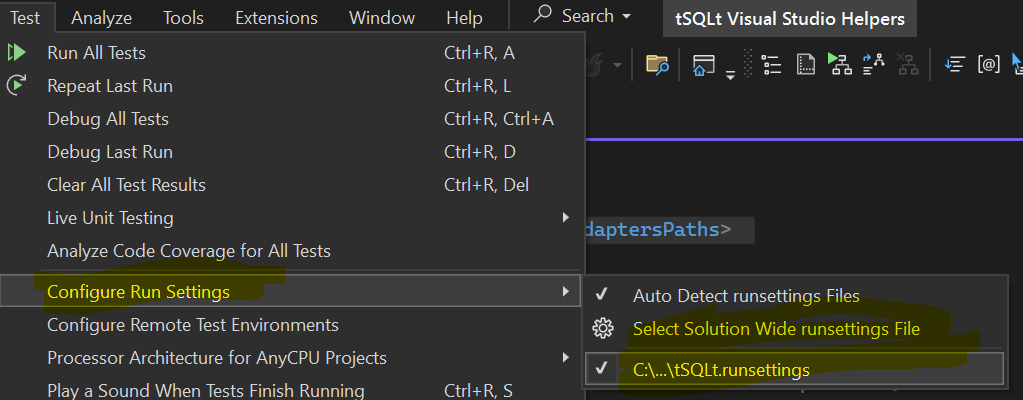
If you have that then when you build the project the test explorer window should discover your tests and show them in the test window:

One thing to note is that the runsettings file also includes a connection string, this is the connection string that is used to run the tests against.
Testing Process
So now we have a test adapter and tests listed in the test explorer that we can run, what is the development / testing process? My recommendation would you first build and deploy the unit test project to your local database, this means you know the database is in a known state. Then you create your tests, if you need to create the schema create that and then the tests.
To deploy then you have two choices, either a full build/publish in SSDT that can take a few minutes, or, if you open a .sql file you will have an additional build menu item “Quick Deploy” (I would suggest mapping the command Build.QuickDeploySql to a keyboard shortcut as well):
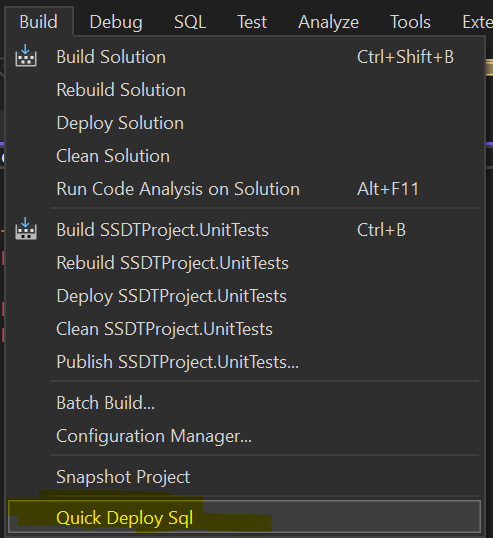
This will deploy:
- Any
CREATEobject where the object doesn’t exist - Any Views or Procedures by converting
CREATEtoCREATE OR ALTER
What it won’t do is:
ALTERany objects like tables or indexes- Validate the logic, if you reference a table that doesn’t exist then the deploy will fail
- Take multiple minutes to deploy a change
My suggestion would be to use the quick deploy while you are writing tests and then once you are happy, do a publish and run the test or tests again to make sure you haven’t broken something.
The quick deploy looks at the code in the window so you don’t need to save the sql file first.
